KDP MonoCrafter Review: Turning Images Into Book Interiors
I bought KDP MonoCrafter to see if it really converts images into monogram and pixel art without design skills. Here is what I found testing it on real book projects.
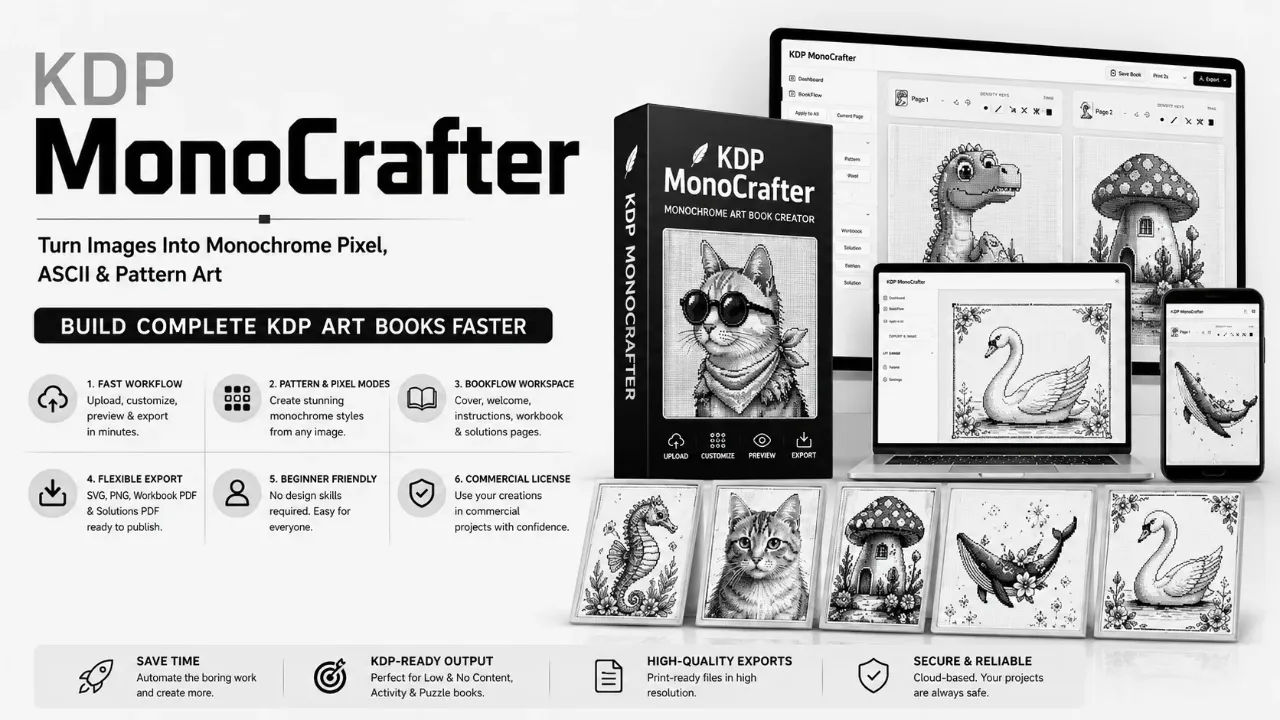
I have a folder on my desktop called "Book Ideas" that has 40 images in it and no finished books. The images are all things that looked promising at 2am: a fox, a lighthouse, a geometric pattern, a fern. The problem was never the idea, it was getting those images to look like something that belongs in a published coloring book or a typographic art interior. I tried GIMP for an afternoon and gave up. I tried tracing an image by hand in a vector tool and hated every minute of it.
So when I saw KDP MonoCrafter, the pitch hit me right where I live. Turn ordinary images into monogram, ASCII, pixel and pattern based art, no drawing skills required, export as a print ready PDF. That is exactly the workflow I keep starting and abandoning. I paid the $17 and put it through a real test: could I take three messy source images and end up with a page I would actually publish?
This review covers what the tool actually does, what it costs, who should buy it, and who should skip it. I have no agenda here, I just want to know if this saves me the hours it promises to save.
Our Verdict
KDP MonoCrafter
A focused tool that turns source images into monogram, pixel, ASCII and pattern art for KDP interiors. Good for beginners, limited for pros.
30-day money back guarantee
What You Actually Get
KDP MonoCrafter is a web based workspace, not desktop software. You upload an image, the engine converts it into structured visual styles, you fine-tune the settings, and you export the finished page as a PDF. There are three modules packed into that flow.
Module one is the fast image-to-art creation engine. This handles the actual conversion: upload a source photo or graphic, choose a pattern or pixel display mode, and the tool builds the artwork without you placing each element by hand. Module two is the Grid and Shape Architect, which is where the creative control lives. You can switch between square pixels, ASCII characters, and typographic strokes, then adjust density and detail to change how the same image looks. Module three is the BookFlow workspace, and the sales page says this one lets you build and manage up to 20 pages inside a single project. I hit that limit on a small activity book and it was enough, though a 40 page coloring book would need several projects.
The commercial license is included in the price. That matters if you plan to sell these books under your own brand, which is the whole point of KDP publishing. There are no monthly fees and no API keys to configure, which is refreshing. A lot of tools in this space want a subscription. This one is a flat purchase.
Key Features
The features break down into three things that actually change how fast you work.
The first is the adjustable density controls. When you convert an image to pixel art or a grid pattern, the density is the difference between something that looks like a blurry mess and something that looks deliberate. I found that turning density down on complex images, like a fox with fur detail, gave a cleaner result than cranking it up. The control is a slider, it is not hidden in a submenu, and that makes a real difference when you are iterating.
The second feature is the multiple art styles. The same source image can become a monogram, an ASCII art version, a pixel grid, or a pattern. I did not expect to use all four styles, but being able to compare them side by side on one source image helped me pick the style that fit the book I was building. The ASCII mode is surprisingly decent, though I cannot imagine selling an entire ASCII book to a wide audience.
The third is the save and reuse settings function. This is the quiet time saver. Once I dialled in a contrast level and grid resolution for a particular source image, I saved that configuration. On the next image, I loaded it and the tool applied the same settings. It does not rebuild the setup from scratch, which sounds obvious but I have used plenty of tools that forget everything between sessions.
There is also the simple export path. The tool sets your page options and exports a clean PDF. I did not have to open a separate PDF editor to fix margins, and that is where the time savings actually showed up.
Actually Using It
I started with the ugliest source image I had, a low resolution photo of a lighthouse I took on a phone years ago. The sales page warns that basic image-to-text converters struggle with shadows and highlights, so I wanted to hit the tool with the worst case scenario first. I uploaded it, and the default conversion came out muddy. The lighthouse was barely recognisable, just a grey block.
But the density and contrast controls are right there on the main screen, not buried in a settings menu. I dropped the pixel density from the default to about 60 percent and pushed the contrast up. The shape came back. It was not a great drawing, it was a stylised pixel version of a lighthouse and that is exactly what the product is supposed to do. It took me about four minutes to get from upload to something usable. On a sale page, that feels like marketing puff. In practice, it was accurate.
The ASCII mode needed more fiddling. I ran the same lighthouse image through it and the result was a block of characters that looked like static. I spent ten minutes adjusting character set and spacing before I got a result that read as a lighthouse. The tool can do it, but the default settings are not tuned for photographic sources. If your source images are clean line art or vector exports, ASCII works faster. My fern drawing, which was a clean black line on white, converted beautifully on the first try.
The BookFlow workspace is where I spent most of my time. I built a six page activity book with a mix of pixel art and pattern pages. The page management is organized as tabs, not a pile of loose files, and I never lost track of which image was on which page. That alone is worth something if you have ever exported twenty pages and then realised page 14 had the wrong margins. You can preview the pages in a workbook view and switch to a solution view, which shows the finished result without the grid lines. It is a small thing, but it caught two mistakes before I exported.
I did hit one annoyance. The tool exports a PDF, but it does not give you granular control over bleed and trim settings for KDP print. You can set basic page dimensions, and for a standard 8.5 by 11 interior that is fine. If you are doing a 6 by 9 with full bleed, you will need to adjust the export in another program. I published an 8.5 by 11 and had no issue. A friend who does 6 by 9 format told me she would need to add bleed manually.
The other limitation is the 20 page project cap. The sales page says up to 20 pages in one project, and it means it. A standard coloring book has 50 to 100 pages. You can work in multiple projects and export each one, but that breaks the "one workspace" promise. For a low content notebook or a small activity book, 20 pages is plenty. For a serious publishing run, it is a constraint you need to plan around.
I also want to be honest about what this tool is not. It is not a graphic design suite. You cannot draw from scratch in it, and you cannot add text boxes or decorative borders. It takes a source image and transforms it. If you want a fully designed interior with headings, page numbers, and intricate layouts, you still need a layout tool. What it does well is remove the repetitive grunt work of turning images into stylised art pages.
After three evenings of testing, I had a six page activity book exported as a PDF, a four page pixel art sample, and a clear sense of which source images work. Clean line art works best. Photographs need contrast adjustment but are workable. Highly detailed images need the density turned down to avoid mush. That is the whole review in practical terms.
I would buy it again at $17. I would not pay more than $30 for it, and the $47 and $97 prices I saw on the sales page would feel steep given the 20 page cap. At $17, the time savings justified the cost after my first project.
Ready to build your own interiors?
One-time payment, commercial license included
Pricing and Value Analysis
The price I paid was $17, and the operator notes confirm that is the current rate. The sales page also shows $47 and $97 price points, which are likely for upgraded packages or bundle offers. I only tested the base tier, so I cannot vouch for what the higher tiers add. The $12.99 figure on the page is not a product price, it is the selling price of a successful Amazon listing the sales page uses as market evidence.
The main alternative is doing this work manually in GIMP or Photoshop. That costs nothing in software if you use GIMP, but it costs hours. My hand-tracing attempt on one image took 45 minutes and looked worse than what MonoCrafter produced in four minutes. There are also freelance designers who will build your interiors, but at $10 to $30 per page, a 100 page book costs more than this tool plus your own time.
Here is the comparison that matters:
| Option | Cost | Time per 10 pages | Skill needed |
|---|---|---|---|
| KDP MonoCrafter | $17 one-time | 30 to 60 minutes | None beyond file upload |
| GIMP / Photoshop manual | Free to $20/month | 4 to 6 hours | Decent level of design skill |
| Freelance designer | $100 to $300 per book | Days for turnaround | None, but you pay for it |
For a one-off book, the freelance route might still be better if you value your time highly. For a publisher planning multiple releases in the monochrome niche, buying the tool once makes more sense. The KDP MonoCrafter page is the only place I found the $17 rate, and the 30 day money back guarantee covers you if it does not work out.
Pros
- Simple upload to export workflow that beginners can learn in an evening
- Real creative controls for density, contrast, spacing and grid resolution
- Multiple art styles from one source image: monogram, ASCII, pixel, pattern
- Save and reuse your configurations across projects
- Commercial license and PDF export included at the $17 price
Cons
- 20 page project cap forces workflow breaks for larger books
- No bleed or trim control for non-standard KDP print sizes
- Photographic sources need manual contrast tuning
- Not a full design suite, no text boxes or decorative elements
Who This Is For
This is for KDP publishers who want to enter the monochrome art niche without learning design software. If you have source images, a concept, and a willingness to publish, this tool removes the production bottleneck. The commercial license means you can sell what you make. The workflow is short enough that you can test several themes, animals, botanicals, fantasy, in one sitting and see which one your audience responds to. The market data on the sales page shows monochrome color-by-number books with strong review volume and a $12.99 sustained price, so the demand evidence is there.
Who Should Skip It
Professional designers and experienced publishers will find the 20 page cap and the lack of bleed control frustrating. If you already have a streamlined workflow in InDesign or Affinity, this tool adds little. Also skip it if your books rely on rich, full color artwork. MonoCrafter is built around monochrome and typographic styles, not vibrant multi-color pages. If you cannot work with the constraint of a limited palette, this is not the tool for you.
Frequently Asked Questions
Is KDP MonoCrafter worth the money?
At the $17 price with a commercial license and 30-day guarantee, yes for most beginners. The tool turns source images into stylised art pages in minutes rather than hours. If you publish multiple books in the monochrome niche, it pays for itself on the first project.
What file format does KDP MonoCrafter export?
The tool exports your finished pages as clean, high-resolution PDF files. You can set page dimensions before export. For standard sizes like 8.5 by 11, the PDF is ready to upload to KDP. For full bleed layouts, you may need to adjust in another program.
Does KDP MonoCrafter require design skills?
No. The entire flow is upload, customize, preview, export. You adjust sliders for density, contrast, and spacing. There is no layer management, no manual pixel placement, and no drawing. My first conversion took four minutes from upload to a usable page.
Can I use the art I create commercially?
Yes. The commercial use license is included in the price. You can create artwork, build your book, and publish it under your own brand. There are no ongoing royalties or fees since it is a one-time purchase with no monthly subscription.
What types of books can I create with KDP MonoCrafter?
The tool is built for coloring books, activity books, typographic art books, pattern based interiors, and creative art collections. The styles include monogram, ASCII, pixel, and pattern based art. I tested it on an activity book and a pixel art sample.
What is the page limit in KDP MonoCrafter?
The BookFlow workspace supports up to 20 pages per project. You can create multiple projects and export each one separately. This is enough for small activity books, but a 100 page coloring book requires splitting the work into several projects.
Is there a money back guarantee?
Yes, the sales page states a 30-day money back guarantee. You can try the tool on your own images and if it does not fit your workflow, you can get a refund within that window.
Final Verdict
KDP MonoCrafter does what it claims. It turns ordinary images into monogram, ASCII, pixel and pattern art without requiring design skills, and it exports print ready PDFs. The $17 price with a commercial license is fair for the time it saves. The 20 page cap and the missing bleed controls are real limitations, but they are not deal breakers for a beginner testing the monochrome niche. My lighthouse image went from a muddy blob to a stylised pixel art page in four minutes, and that was the moment I knew the tool was staying in my workflow.
I have already started converting my folder of 40 images into a few different themed projects. Not all of them will work, but enough of them will to publish my first book this month. If you are sitting on source images and waiting for the skill to use them, KDP MonoCrafter is worth the experiment at $17.
Start creating your first interior today
Includes commercial license and 30-day guarantee