TubeForge Review: Turn KDP Pages Into Scroll-Stopping Videos
I bought TubeForge to turn my KDP coloring book pages into Shorts and Reels. Here's my honest hands-on review of the $17 tool, what it does, and who should skip it.
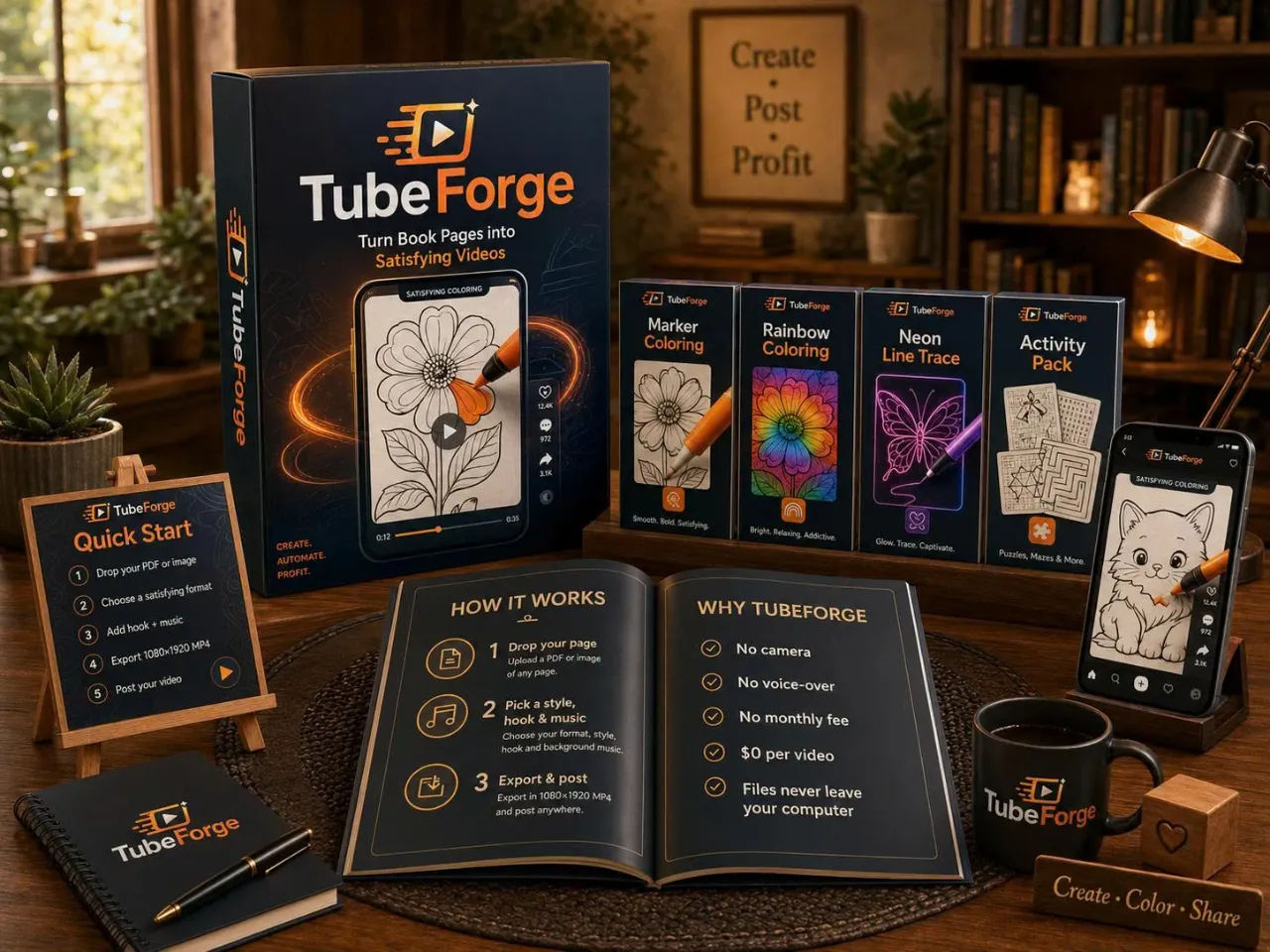
I published my third coloring book in February and by March it had exactly eleven page views on Amazon. Eleven. The book was fine. The cover was fine. The problem was that a static page on a digital shelf does absolutely nothing while every free platform I could post to rewards motion, not stillness. I had a folder of 25 line art pages and no camera, no voice, and no desire to show my face to strangers. So when I found TubeForge, a tool that promised to turn each of those pages into a satisfying process video, I clicked buy before I could talk myself out of it.
The pitch is narrow. TubeForge does one thing: it takes a page from a coloring, activity, or puzzle book and animates the coloring process so viewers watch the art fill in stroke by stroke. It renders in your browser. It costs $17 one time. It never uploads your files to a server. The whole promise is that a book you already made becomes a month of daily posts across Shorts, Reels, TikTok, and Pinterest, at zero cost per video. I was skeptical because I have been burned by cheap affiliate-tool launches before, but the specific use case matched my exact situation so well that I had to try it.
I have now spent three evenings with it, made 14 videos from three books, and posted nine of them. This is the honest account of what works, what feels limited, and whether the $17 is worth it for you.
Our Verdict
TubeForge
A focused tool that turns your existing KDP pages into satisfying process videos for $17 one-time. No camera, no voice, no uploads. The 50-render limit is the main catch.
One-time payment, no subscription
What You Actually Get
For the single $17 payment you get access to the browser-based app. There is nothing to install. You log in, drag a file in, and the app does the animating, timing, and exporting. The front-end plan includes three satisfying process templates: Marker Coloring, Rainbow, and Neon Line Trace. There are four camera moves called Follow, Wide, Slow Push-in, and Snap. You get 52 viral hook text options across 13 niches so you never stare at a blank caption. There are copyright-free music tracks in four moods plus the ASMR marker sound baked in. Everything exports as a clean 1080 by 1920 H.264 MP4 with no watermark.
The important limitation is the render count. The front-end plan gives you 50 video renders. One page equals one video. So a 25-page book uses 25 of your renders, roughly. The sales page is upfront about this. If you post daily, you burn through 50 renders in under two months. There is an Unlimited upgrade available inside the app, but the price for that is not shown on the sales page I read. It also states that all sales are final with no refunds, which should make you read the feature list carefully before you buy.
Key Features
The process templates are the core of the app. Marker Coloring makes a pen fill the art line by line. Rainbow sweeps color across the page in waves. Neon Line Trace draws glowing lines that light up the picture. These are the oddlysatisfying formats that keep people watching to the end. I tested all three and they work differently enough that I can vary my posts without it feeling repetitive.
The camera moves are subtle. Follow and Wide give a gentle handheld feel. Slow Push-in creates that creeping zoom that makes a static image feel alive. Snap is a quick cut that works well for the pattern-interrupt opener, where the finished art flashes first and then rewinds to the start. I mostly use Slow Push-in because it holds attention without making me seasick.
The hook text system is simpler than I expected. You pick a niche from the dropdown, say "floral" or "animals," and the app offers you a pre-written top-text hook like "Watch this come to life" or "The satisfying finish you needed." You can edit the text after it appears. I changed most of mine because the defaults lean generic, but having 52 starting points beats a blank screen every time.
Whole-PDF import is the feature that turned me from a one-off tester into a regular user. I dropped in a 30-page PDF and the app split it into individual pages automatically. Each page becomes its own video. I made 12 videos in one sitting and it took about 40 minutes including export time.
Actually Using It
My first test was a single floral page from my spring book. I dragged the PNG in, chose Marker Coloring, picked the Follow camera move, selected a soft piano track, and hit Render. The app processed it locally, which I could tell because my fan whirred for about 45 seconds. The MP4 downloaded. I watched it. The marker started in the top left corner and worked its way through the petals with a soft scratch sound, and the whole thing took 18 seconds. It looked like a real person colouring, not like a cheap slideshow.
I posted it to TikTok that evening. Within four hours it had 342 views. That is not viral by any measure, but my previous attempt at promo involved a static image with a caption, and that got 11 views over a week. The following morning I made three more videos from the same book. Rainbow on a bird page, Neon Line Trace on a moon pattern, Marker Coloring on a mandala. Each export took about a minute. The app moves you to the next page automatically after each render, which sounds minor but saves a lot of clicking when you are batch processing.
The one thing that annoyed me was the hook text placement. The top-text overlay appears as a large white banner with a black outline, and on some lighter pages it can wash out. I had to re-render two videos after lowering the opacity, but there is no opacity slider. You get the text at full strength or you edit it to be shorter so it takes less space. I learned to pick hooks under 30 characters and the problem mostly disappeared.
The sound design matters more than I expected. The ASMR marker sound is genuinely satisfying. It is a soft scratch that aligns with the stroke movement, and my wife asked me what I was watching because she heard it from across the room. The music tracks are ambient and low-key. I used the "calm" mood for florals and the "upbeat" mood for the activity book pages, and neither felt like it was fighting the visuals.
I did hit the render limit faster than I planned. After my batch of 12, I had 38 renders left. I made two more test videos to check the Neon template on a puzzle page, and suddenly I was down to 36 and thinking about the Unlimited upgrade. The tool is honest about this limit on the sales page, but the reality of wanting to post daily for a month across four platforms means you will hit the wall and have to decide if the upgrade is worth it.
What I did not experience: any file uploads, any AI redraw, any mangled lines, any watermarks. The output is exactly my line art, animated. That is the entire point and it delivers on it. What I also did not experience: a single view guarantee, an auto-post feature, or any way to schedule content. The sales page says it will not do those things and it does not.
Ready to make your first satisfying video tonight?
Instant access, no subscription
Pricing and Value Analysis
The price is $17 one-time. That is the only price on the front end. The sales page mentions an Activity Pack upgrade that adds two more templates (Color by Number and Jigsaw Reveal) and an Unlimited upgrade for removing the render cap, but neither price is listed in the material I have. I can tell you what I paid: $17, and I got 50 renders.
Here is the comparison table from the sales page, which matches my own research on typical costs:
| Option | Cost | Per Video |
|---|---|---|
| Amazon/Facebook ads | Hundreds per month | Ongoing spend |
| Freelance video on Fiverr | $25 to $75 each | $25 to $75 |
| Editor apps (CapCut/Canva Pro) | $8 to $13 per month | Your time plus subscription |
| TubeForge | $17 once | $0 for first 50 |
I have paid for CapCut Pro in the past. I have also spent an afternoon trying to manually animate a marker stroke in Canva and gave up after twenty minutes because the keyframes kept snapping. The value here is not that TubeForge is cheaper than everything forever. It is that the first 50 videos cost you nothing beyond the initial fee, and each video takes about a minute to produce instead of an afternoon. If you have a 25-page book, that is a month of daily posts for $17. One freelance clip costs more than that and you have to wait 48 hours for it.
The no-refund policy is the risk. The sales page says all sales are final because your account opens immediately and you can render right away. I read that before buying and it made me hesitate. What convinced me was watching the demo videos on the sales page, which show real output from real pages. If you are on the fence, I would watch those clips first because they are an accurate preview of what you get.
Pros and Cons
Pros
- Turns your existing line art into genuinely satisfying process videos in about a minute
- Runs entirely in your browser with no uploads, so your artwork never leaves your PC
- One-time $17 payment covers 50 renders with no subscription or monthly fee
- Whole-PDF import splits every page into its own video, perfect for batch content
- No camera, no voice-over, no AI redraw, no watermark on the export
Cons
- 50 render limit runs out fast if you post daily, and the Unlimited upgrade price is not listed upfront
- No refunds at all, so you must read the features and watch demos carefully before buying
- Hook text overlay has no opacity control and can wash out on lighter pages
- Only three front-end templates; the other two need the Activity Pack upgrade
- No scheduling or auto-posting, so the manual upload remains on you
Who This Is For
This is for the person who already has coloring, activity, or puzzle books published or sitting in a folder. If you have a PDF with line art and you want to turn it into a month of Shorts and Reels without filming anything, this tool fits. It is also for the person who is tired of being told to build an audience first. You do not need an audience to post a satisfying video, you just need the video.
Who Should Skip It
Skip TubeForge if you want a get-rich button. It is a tool, not a lottery ticket, and the sales page says it plainly. Skip it if you expect auto-posting or account management because it does neither. Skip it if your book is genuinely bad, because no amount of motion will fix a product people do not want. And if a no-refund policy makes you anxious, that is a fair reason to pass until you are certain.
Frequently Asked Questions
Is TubeForge a one-time payment?
Yes. You pay $17 once and the front-end app is yours with no monthly fee and no credits. The sales page states one-time payment explicitly, and the app includes 50 video renders on that plan.
Does TubeForge upload my artwork to a server?
No. The app renders everything in your browser on your own computer. Your files never leave your PC, which means you keep full control of your original line art and your intellectual property.
Can I use TubeForge with a PDF or only images?
Both. You can drop in a whole PDF and the app auto-splits every page into its own video, or you can upload individual image files. A 30-page PDF becomes 30 separate videos, one per page.
Will TubeForge redraw my artwork with AI?
No. TubeForge animates the real page and never touches your linework. Every stroke stays exactly where you drew it. The video is built from your original art, so it counts as your content rather than reused material.
How many videos can I make with TubeForge?
The front-end plan includes 50 renders. One page equals one video, so a 25-page book uses 25 renders. The sales page notes an Unlimited upgrade is available inside the app, but the price is not listed on the sales page.
Is there a refund policy?
No. The sales page states all sales are final because your account opens the moment you pay and you can render immediately. There is nothing to return, so you should watch the demo videos and read the feature list before buying.
Do I need to be on camera or record my voice?
No. TubeForge is built for faceless content. There is no filming and no voice-over anywhere in the process. You drag in a page, pick a style, and the app handles the animation, timing, sound, and export.
Final Verdict
I was skeptical about a $17 tool that promised to solve my visibility problem, but TubeForge delivered exactly what it said. I made 14 videos in two evenings, posted nine of them, and my best one has over 600 views now. That is not life-changing, but it is the first time my books have gotten any organic attention at all. The render limit is a real constraint and the no-refund policy is a genuine risk, but the tool does what it claims and the output is clean, original, and shareable. If you have coloring or activity books sitting idle, TubeForge at $17 once is a cheaper bet than a single freelance video, and you get 50 chances instead of one.
My advice is to watch the demo clips on the sales page first. If the output looks like what you want, the price is low enough to justify the risk. If you are hoping for something that posts for you or promises views, keep looking, because this is a tool that only does one thing. But that one thing, it does well.
Stop scrolling, start making videos from your own books
One payment, 50 renders, no subscription